15. Cloud webapp — Reports
After a field blend finishes, the panel uploads a dispense report. Use Reports to review totals and download PDFs.
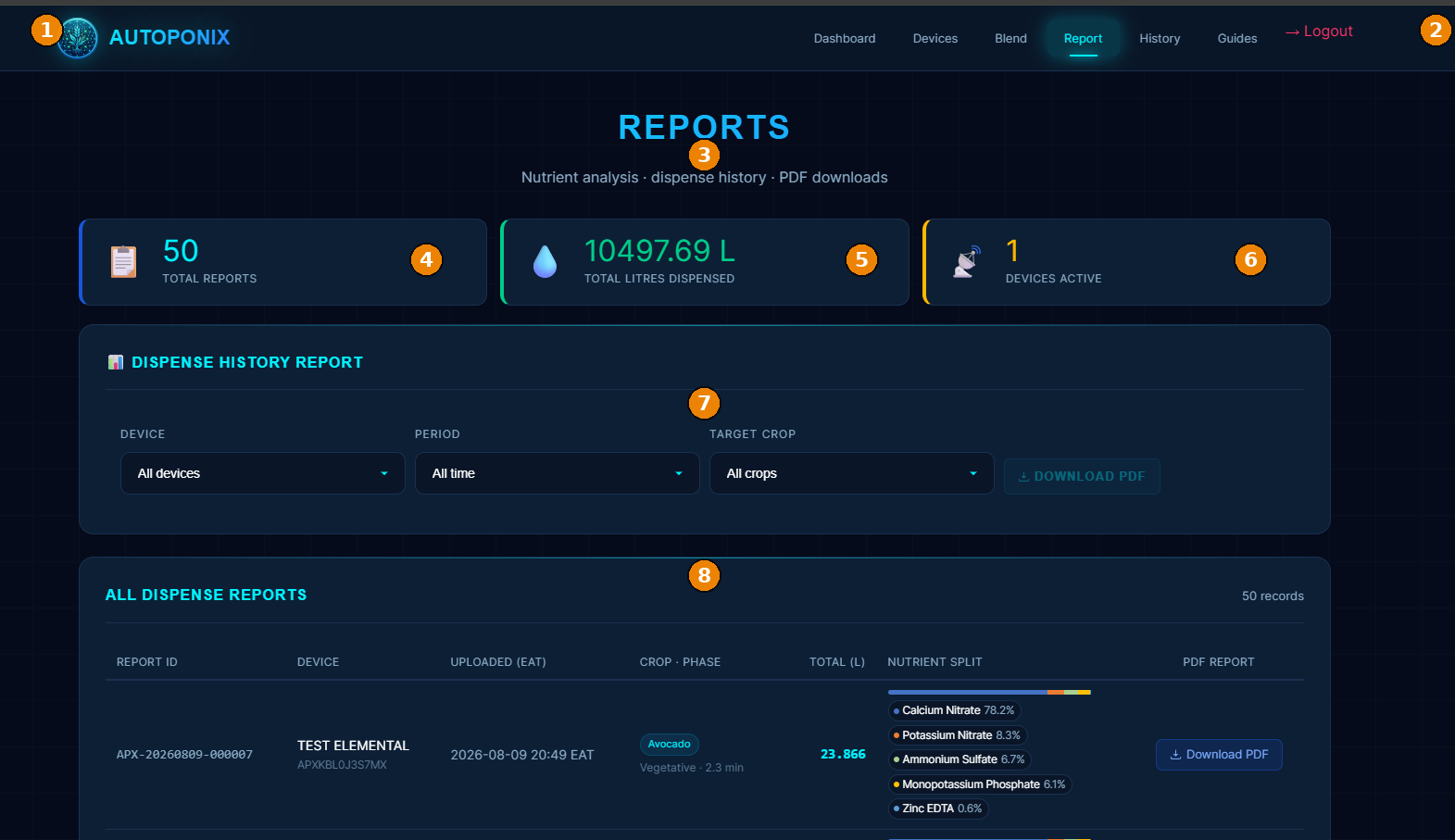
| # | Feature | What it means |
|---|---|---|
| 1 | Branding | Autoponix header. |
| 2 | Logout | End session. |
| 3 | Reports title | Nutrient analysis · dispense history · PDF downloads. |
| 4 | Total Reports | How many dispense reports are stored for your account. |
| 5 | Total Litres Dispensed | Sum of recorded dispensed volume. |
| 6 | Devices Active | How many devices contributed activity in the selected view. |
| 7 | Dispense History filters | Filter by Device, Period, Target Crop; optional bulk Download PDF when enabled. |
| 8 | All Dispense Reports table | Report ID, device, uploaded time, crop · phase, total L, nutrient split bar, per-row Download PDF. |
Tip
Prep / instruction PDFs from the Blend page (View Report) are different from dispense
PDFs here. Dispense reports appear after the panel finishes and uploads a run.
Next
History
— previous blend calculations.