8. Running a blend
Start a job from Home, watch the live indicators, and stop cleanly when finished. Numbers below reuse the Home screen map.
Step-by-step
- Confirm Crop, Phase, and Job (#2–#4) show a real cloud job.
- Confirm badge (#9) is IDLE and alarm card (#17) is ALL CLEAR (or you have cleared any warning).
- Press START (#20).
- Watch badge (#9), centre (#14), dispensed (#15), and pumps (#12) while it runs.
- Press STOP (#21) when the run is complete — the panel finishes the dispense report.
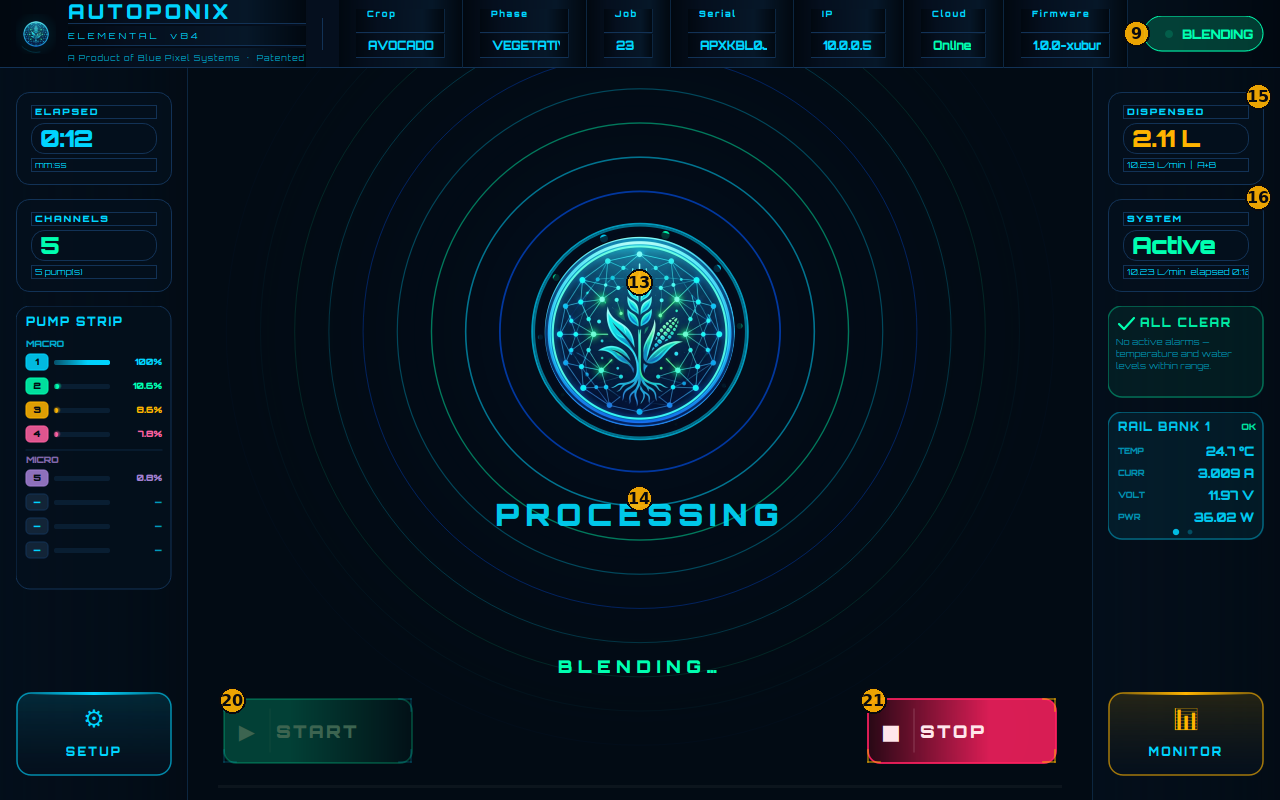
What changes while blending
| # | Feature | What you should see |
|---|---|---|
| 9 | Status badge | Shows BLENDING (green). |
| 12 | PUMP STRIP | Live MACRO / MICRO bars and % — recipe is being dosed. |
| 13 | Centre emblem | Animated rings around the plant emblem. |
| 14 | Centre status | PROCESSING with BLENDING… underneath. |
| 15 | DISPENSED | Litres and flow rate climbing as solution is delivered. |
| 16 | SYSTEM | Usually Active, with flow / elapsed notes. |
| 17 | Alarm card | Should stay ALL CLEAR unless something needs attention. |
| 20 | START | Dimmed — blend already running. |
| 21 | STOP | Bright — press this to end the job. |
If the blend pauses or shows WARNING / ERROR
Do not ignore the alarm card. Open
Warnings & troubleshooting
for empty concentrate, full output tanks, and fault cases.
Next
Learn concentrate tanks and the event log in
Setup & tanks.