14. Cloud webapp — Blend calculator
Build an AI nutrient recipe from crop, growth phase, output tank sizes, and soil test results — then push the job to a field panel.
Enter the blend inputs
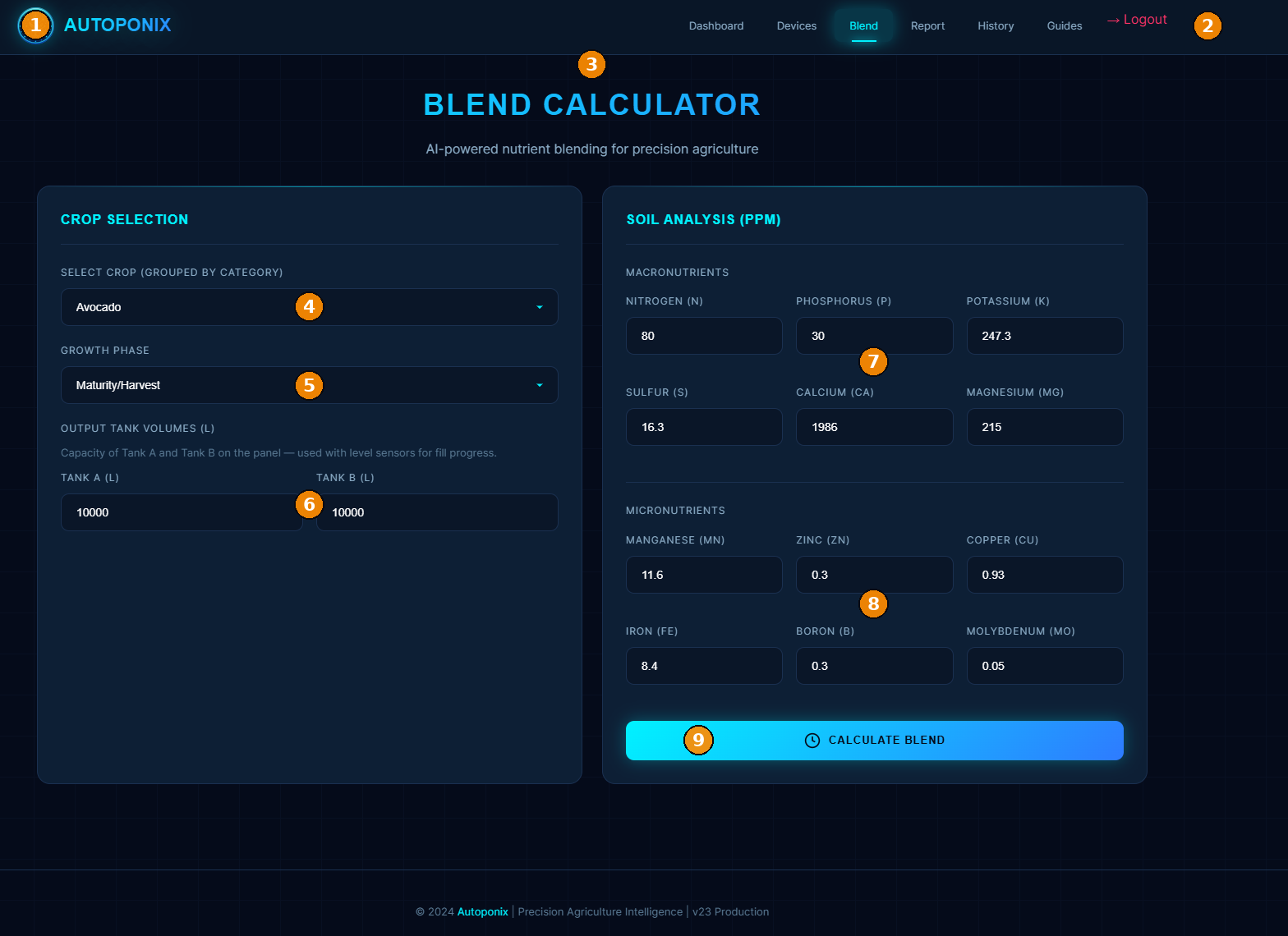
| # | Feature | What to do |
|---|---|---|
| 1 | Branding | Autoponix cloud header. |
| 2 | Logout | End session when finished. |
| 3 | Blend Calculator title | Confirms you are on the blend page. |
| 4 | Select Crop | Choose the crop (grouped by category), e.g. Avocado. |
| 5 | Growth Phase | Choose the current phase, e.g. Maturity/Harvest or Vegetative. |
| 6 | Output Tank Volumes | Set Tank A and Tank B capacities in litres to match the physical skid (used with panel level sensors). |
| 7 | Macronutrients (ppm) | Enter soil lab values: N, P, K, S, Ca, Mg. |
| 8 | Micronutrients (ppm) | Enter Mn, Zn, Cu, Fe, B, Mo. |
| 9 | Calculate Blend | Starts the AI calculation. |
Structured procedure — calculate a blend
- Open Blend from the top nav (or New Blend from a device card).
- Select crop (#4) and growth phase (#5).
- Confirm Tank A / Tank B volumes (#6) match Output Tank A / B on site.
- Enter soil analysis ppm for macros (#7) and micros (#8) from your lab report.
- Click Calculate Blend (#9).
- Wait while the AI processing steps run (next figure).
- When results appear: review the recipe, choose the target device, and push the job to the panel.
- Optionally open View Report for the preparation PDF.
- At the field panel, confirm the job is loaded, then run the blend (chapters 4–6).
While the AI is processing
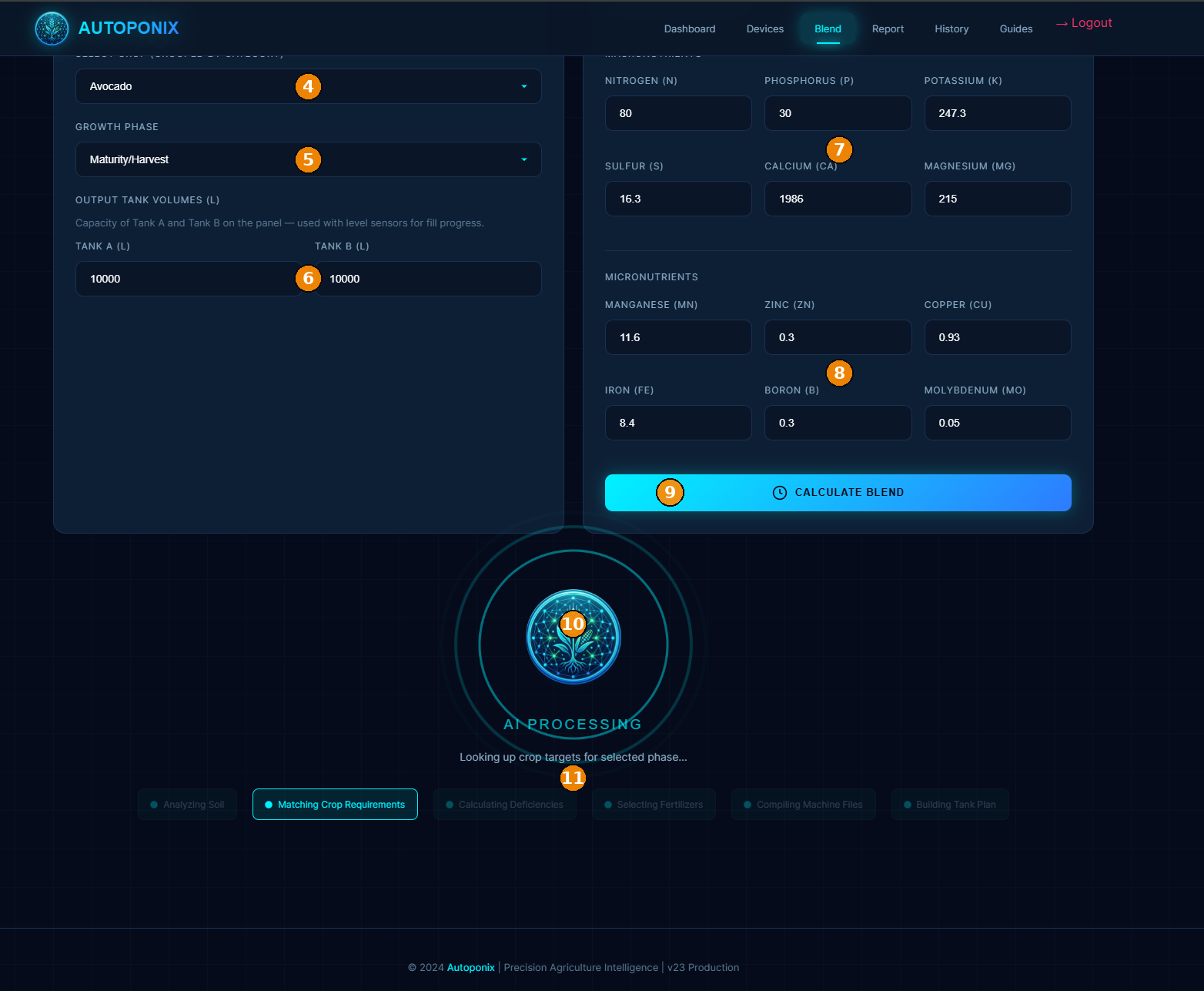
| # | Feature | What you see |
|---|---|---|
| 4–8 | Inputs (still visible) | Your crop, phase, tanks, and soil values remain on screen. |
| 9 | Calculate Blend | May stay visible while processing continues below. |
| 10 | AI Processing | Centre status (e.g. looking up crop targets for the selected phase). |
| 11 | Progress steps | Analyzing Soil → Matching Crop Requirements → Calculating Deficiencies → Selecting Fertilizers → Compiling Machine Files → Building Tank Plan. |
After calculate
Results include the nutrient plan and machine channels. Select the device from the
dropdown and push so the field HMI receives Crop, Phase, and Job. Then the site
operator starts dosing on the panel.
Next
Reports
— dispense history and PDF downloads.